
Provider: |
 james_h james_h |
Maintainer: |
james_h |
Rating: |
(14 votes)
|
Application: |
Calc, Draw, Impress, OpenOffice.org, Writer |
Tags: |
impress, extension, Calc, draw, speech, festival, festivox, espeak, mbrola, read text, sapi5, writer., synthesis, read clipboard, read selection |
Screenshots: |
https://raw.githubusercontent.com/jimholgate/readtextextension/master/wiki/Defau... |
Source code: |
https://github.com/jimholgate/readtextextension |
Post date: |
Tuesday, 14 July, 2009 - 16:53 |
Statistics |
Week: Not tracked - Month: Not tracked - Year: Not tracked - Timeline |

The Read Text Extension lets an external program or web application read text from Writer, Calc, Draw, Impress, Web Writer or the system clipboard. If you use it to read text aloud, it can help you to edit your writing or to compare your document's text with a printed document. If you use it with a web application, you can translate your text to another language or check punctuation and grammar. It can help you to learn a new language or to find out how to say words you do not know.
To use it, highlight some text. If you are using the word processor or the HTML editor, you can highlight several selections by holding down the Control key. When you have highlighted some text, select Tools - Add-Ons - Read Selection or click the Read Selection button on the tool bar.
To read the system clipboard, select Tools → Add-Ons → Read clipboard.
If you can't read the screen easily, consider a system-wide accessibility solution for Apple OSX, Gnome, KDE or Microsoft Windows. If you have installed a system-wide accessibility solution, and it is activated, then you might not need this Add-On to read text aloud. You can use the Read Text Extension to read using a different language or voice, to save speech as an audio file, or send the text to a web application.
The add-on uses temporary files to send information to external programs. Depending on the security set up of your computer, other users or programs might be able to read the contents of files that the the extension or other external programs produce. If you are concerned about privacy, launch this add-on again with no text selected to replace the temporary file that contains the text you want to remain confidential. The paths and names of any temporary files directly created by the extension are shown in the Command and Script areas of the About... dialog.
Built-in speech synthesis
The extension uses your computer platform's built-in speech synthesis application by default. For example, Linux uses espeak. Apple OSX uses say. Windows uses the system's SAPI5 voices. A Windows computer can read with a different voice or language if you install an additional SAPI5 voice.
External Programs
External programs can give your computer the ability to use different languages or voices. To use text to speech with a command-line based speech synthesis program like Festival or eSpeak on your computer, you may need to install extra speech files for your language and dialect. Custom voices will only work if they are installed. If you are using espeak with a recent release of Ubuntu Linux, you can install mbrola voices using the package manager. For other platforms, see the espeak-mbrola web page for instructions how to install voices from the mbrola project.
The external application can be any program you can start with a command line that can read plain text documents.
Web Application
If you have an Internet connection, you can get started reading text aloud right away using different languages or voices without installing software by using the web application option. The extension uses your web browser or media player to play the selection.
The main dialog of the Read Text Extension includes access to a web application for creating QR codes. QR codes are patterns of squares that embed text in a visual image so that mobile devices can quickly and reliably read information with a built-in camera. The application is powered by the Google Chart API. Read the on-line help for more information.
Command and Script Tokens
When you need these values in a command or a script use the appropriate token. When the add-on is executed, the value in brackets is replaced by the actual string required.
| Version | Operating system | Compatibility | Release date | ||
|---|---|---|---|---|---|
| 0.8.75 | Linux, Linux x86-64, MacOS X, System Independent, Windows | 4.1 | 23/02/2024 - 22:05 | More information | Download |
| 0.8.74 | Linux, Linux x86-64, MacOS X, System Independent, Windows | 3.4 | 23/02/2024 - 22:00 | More information | Download |
| 0.8.73 | Linux, Linux x86-64, MacOS X, System Independent, Windows | 4.1 | 06/11/2023 - 01:47 | More information | Download |
| 0.8.72 | Linux, Linux x86-64, MacOS X, System Independent, Windows | 3.4 | 06/11/2023 - 01:43 | More information | Download |
| 0.8.71 | Linux, Linux x86-64, MacOS X, System Independent, Windows | 4.1 | 01/09/2023 - 13:47 | More information | Download |
| 0.8.70 | Linux, Linux x86-64, MacOS X, System Independent, Windows | 3.4 | 01/09/2023 - 13:42 | More information | Download |
| 0.8.69 | Linux, Linux x86-64, MacOS X, System Independent, Windows | 4.1 | 15/07/2023 - 22:04 | More information | Download |
| 0.8.68 | Linux, Linux x86-64, MacOS X, System Independent, Windows | 3.4 | 15/07/2023 - 21:49 | More information | Download |
| 0.8.67 | Linux, Linux x86-64, MacOS X, System Independent, Windows | 4.1 | 28/05/2023 - 19:21 | More information | Download |
| 0.8.66 | Linux, Linux x86-64, MacOS X, System Independent, Windows | 3.4 | 28/05/2023 - 19:13 | More information | Download |
| 0.8.64 | Linux, Linux x86-64, MacOS X, System Independent, Windows | 3.4 | 15/03/2023 - 00:30 | More information | Download |
| 0.8.65 | Linux, Linux x86-64, MacOS X, System Independent, Windows | 4.1 | 15/03/2023 - 00:22 | More information | Download |
| 0.8.63 | Linux, Linux x86-64, MacOS X, System Independent, Windows | 4.1 | 01/12/2022 - 17:35 | More information | Download |
| 0.8.62 | Linux, Linux x86-64, MacOS X, System Independent, Windows | 3.4 | 01/12/2022 - 17:25 | More information | Download |
| 0.8.61 | Linux, Linux x86-64, MacOS X, Windows | 4.1 | 02/10/2022 - 15:12 | More information | Download |
| 0.8.60 | Linux, Linux x86-64, MacOS X, Windows | 3.4 | 02/10/2022 - 15:08 | More information | Download |
| 0.8.58 | Linux, Linux x86-64, MacOS X, Windows | 3.4 | 24/08/2022 - 20:32 | More information | Download |
| 0.8.59 | Linux, Linux x86-64, MacOS X, Windows | 4.1 | 24/08/2022 - 12:55 | More information | Download |
| 0.8.57 | Linux, Linux x86-64, MacOS X, Windows | 4.1 | 02/05/2022 - 17:29 | More information | Download |
| 0.8.56 | Linux, Linux x86-64, MacOS X, Windows | 3.4 | 02/05/2022 - 17:23 | More information | Download |
| 0.8.52 | Linux, Linux x86-64, MacOS X, System Independent, Windows | 3.4 | 23/09/2021 - 01:03 | More information | Download |
| 0.8.53 | Linux, Linux x86-64, MacOS X, System Independent, Windows | 4.1 | 23/09/2021 - 00:58 | More information | Download |
| 0.8.51 | Linux, Linux x86-64, MacOS X, System Independent, Windows | 4.0, 4.1 | 02/05/2020 - 17:17 | More information | Download |
| 0.8.49 | Linux, Linux x86-64, MacOS X, System Independent, Windows | 4.0, 4.1 | 09/03/2020 - 14:18 | More information | Download |
| 0.8.47 | Linux, Linux x86-64, MacOS X, System Independent, Windows | 4.0, 4.1 | 05/03/2020 - 17:06 | More information | Download |
| 0.8.45 | Linux, Linux x86-64, MacOS X, System Independent, Windows | 4.0, 4.1 | 30/01/2020 - 22:52 | More information | Download |
| 0.8.42 | Linux, Linux x86-64, MacOS X, System Independent, Windows | 3.0, 3.0.1, 3.1, 3.2, 3.3, 3.4 | 08/02/2019 - 13:36 | More information | Download |
| 0.7.28 | System Independent | 2.x, 3.0, 3.1, 3.2, 3.3, 3.4 | 18/03/2012 - 03:31 | More information | Download |
Comments
I installed the plugin, but when I try no play the sound, I get a dialogue box asking me to pick an external program, then nothing happens.
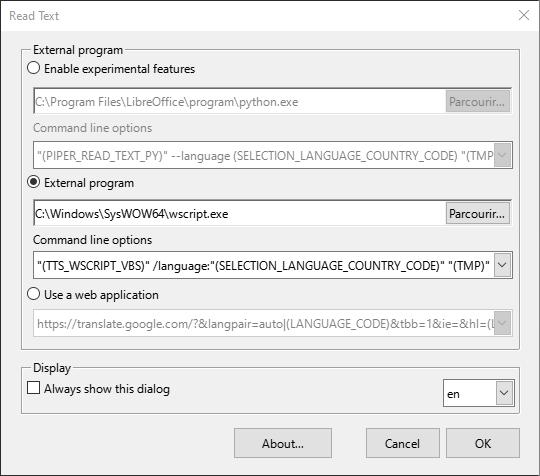
![Read Text Extension - Read with an external program][1]
In most cases, the default settings will work when you click OK. You can check a screen shot of a working installation at the [extension's web site][2]. There is also an old video on YouTube that shows how to [set it up on Windows Vista...][3] It's a little different, but you should get the idea!
[1]: https://lh3.googleusercontent.com/oUiS2Fj1VnHXU5NiSsmevX2sE0iZri_4GnPctY...
[2]: https://sites.google.com/site/readtextextension/home/microsoft-windows
[3]: https://youtu.be/OCARVoZqC-s
Hello. I love Read Text!
Soon after installing it I unchecked the "Always show this dialog" box because I wanted it to read the text immediately without showing the dialog box every time. Works great but now I need to access the dialog box to change voice. How can I pull up the dialog box again? I suppose I could re-install the extension but would rather not.
Thank you!
fyi. I solved my own problem. The dialog box will always appear when accessing Read Text by going to Tools/Add-Ons/Read Selection, even if you've disabled the dialog box via the Read Text toolbar icon.
Thank you. Your comment will help users who are having the same problem. For more information about the settings, use F1 or select Help - LibreOffice Help - Read Text Extension - Setting up Read Text Extension - Set up.
I downloaded the extension and it appears in my extension manager, but I can't find it anywhere when I have a document open. There is no 'add ons' in my 'tools' menu. There is just nothing new anywhere.
Sorry for the delay...
https://sites.google.com/site/readtextextension/home/announcements/howdoigetittowork
Many thanks. Just a quick question, was this program originally called "Just Read"?
You are very welcome! The original name of the extension is Read Text. I am aware of several different projects that can read text aloud, but I am not familiar with a project with that name.
Thanks for your comment!
First, let me comment on how excellent this extension is. I am very impressed and have made use of this extension quite a bit as I frequently like to write. Having this extension read what I wrote makes it easier for me to self-edit more accurately and more objectively. It helps me find better wording when I have an awkward sentence - having something read this back to me is quite beneficial.
Second, I want to comment on how wonderfully documented this is. Your description, here on this site, is concise and informative. If there were no other options to offer praise then this alone would be enough to leave a gratuitous comment. The inclusion of such a description shows how much attention is given to detail and is a likely indicator of the code's quality. In this case it is spot-on and I appreciate the effort and the results.
At risk of sounding overly eager or lacking in objectivity, and this is not a slight against the rest, this is, probably, the best extension description I have read on this site. It answered all of my questions and provided information about things I did not even know I would have as questions. It was enough to prompt me to, finally, return and offer my sincere thanks for your work. I, and I am not alone, appreciate it immensely.
Congratulations and thank you for this adon.
I find it very useful. Yhere are often some errors or missing words I'm unable to identify when I don't read aloud, which is difficult when I write very long text (articles, PhD thesis, etc.).
Maybe a few suggestions (I run it on Windows 7 with LO 3.4.4, using eSpeak and write mostly in French, sometimes in English).
- I believe it would be useful to have it also on the LO extension repository
- Maybe it would be useful to develop a little bit the guidelines to write the tokens. In particular how to adapt speed (I found out for this one) and switch voice (I don't see how to do it)
Once again, very good job!
Kind regards
I downloaded ReadText 0.7.4 and installed it into my OpenOffice.org 3.3.0 under Windows 7 Home Premium 64-bit SP1.
The toolbar shows up in Writer as expected and clicking on it brings up the dialog box.
I downloaded and installed
Mbrola Tools 3.5
eSpeak version 1.44.05
An initial test worked o.k., I think. (I am having trouble recalling every step along the way.) I typed in a sample German text "Es gibt kein Bier mehr auf Hawaii!" and, if I remember right, played it using wscript.exe, which called up the female Narrator voice in Windows 7. As expected, this sounded very unnatural (the Narrator voice speaks only English.)
I also downloaded, unzipped and copied two language data files to the paths prescribed by http://espeak.sourceforge.net/mbrola.html:
MB-EN1
MB-DE6
I installed eSpeak, making sure that I added mb-en1 and mb-de6 on separate blank lines in the installation dialog, below the preset language entries.
Both programs are installed, according to Control Panel.
However, when I select the German text in Writer and click on the ReadText toolbar, I am unable to produce a good result.
(1) External program; Use Festival with a script [Why Festival? I did not install Festival]: C:\Windows\System32\wscript.exe / Script commands: (tts"(TMP)"nil) (quit) / Clicking "OK" brings up an error message from Windows Script Host, according to which there is no script module for the ".sh" extension
(2) Read with an external program: C:\Program Files (x86)\eSpeak\command_line\espeak.exe / Command line options: -v espeak-MB-DE6 -f "(TMP)" / A green progress bar flashes very briefly in the status bar at the bottom of the Writer window but there is no sound (and no error message)
(3) Read with an external program: C:\Program Files (x86)\eSpeak\command_line\espeak.exe / Command line options: -v german -f "(TMP)" / The text is voiced by a male (?) voice, but it sounds like Stephen Hawking's speech synthesizer underwater! (Worse than the Windows 7 Narrator, which I can't get back.)
Can you help me make your extension work on my machine?
But now I am confused. I thought I was following your instructions for Windows on this page: https://sites.google.com/site/readtextextension/home/microsoft-windows
Did I go wrong at some point or are your instructions somehow obsolete?
I am not sure how you should proceed with mbrola, because you could end up investing a lot of time and never getting it to work properly with your 64 bit operating system. A SAPI5 voice specifically designed for Windows 64 bit is about twenty-two Euro. See the support site Web resources link for more information. MS should supply a German SAPI5 voice with their German operating system, but they don't yet.
If you still want to try the mbrola version, after all those warnings, these instructions worked for my 64 bit system, but your results may vary...
Learn about mbrola, and read the licensing terms at http://tcts.fpms.ac.be/synthesis/. Get the Windows version of mbrola at http://tcts.fpms.ac.be/synthesis/mbrola/bin/pcwin/MbrolaTools35.exe
Once you have installed mbrola and espeak in the default directories, install databases and voices. Go to http://tcts.fpms.ac.be/synthesis/mbrola/mbrcopybin.html
Scroll down the page to pick out a couple of voices. Not all voices are supported by espeak. Determine if the voice is supported by looking in the in C:\Program Files (x86)\eSpeak\espeak-data\mbrola_ph directory. In this walk through, I will pick the de6 voice.
You need administrator rights to copy files into the Programs directories.
After you have downloaded the de6 voice zipped file to your downloads folder, open the zip file and copy the de6 voice to C:\Program Files (x86)\eSpeak\espeak-data\mbrola
Register the de6 database by going to the control panel and searching for Mbrola. Click the Mbrola (32 bit) icon. Click Wizard. In OS (C:), browse to C:\Program Files (x86)\eSpeak\ Click OK. Click Apply.
Test mbrola. From the German zip file, copy the english.pho file to the Desktop. Double click it, or open the .pho editor with
Start > All Programs> Mbrola Tools > Mbroli
Tools > Play
You should hear a message.
Open a command window and enter (or paste) "C:\Program Files (x86)\eSpeak\command_line\espeak.exe" -v mb-de6 123
You should hear a message. If not, pay attention to the written error message in the console window.
Open writer.
Use Tools > Add-ons > Read Selection...
The espeak tool does not work for the regular SAPI voices, but does work with espeak voices and mbrola voices. If you want to use the espeak tool:
Under Use an external program, enter
C:\Program Files (x86)\eSpeak\command_line\espeak.exe
in the Command line options, enter:
-v mb-de6 -s 130 -f "(TMP)"
The WSCRIPT tool only works for native SAPI5 and regular espeak voices:
Under Use an external program, enter
C:\Windows\SysWOW64\wscript.exe
In the Command line options, scroll down to view the list of voices. Note that only a selection of espeak voices are listed.
Click Cancel. You are done!
Thank you for your reply. As soon as I get the time I will try to follow your procedure and then report back to you.
Update: OK, that seems to have done the trick. Guess it was the step about registering the "databases" that was missing earlier.
Is there a way to tell ReadText to remember the command line option, so that I won't have to look it up and paste it in every time?
You are welcome. I am glad it worked for you.
Read Text 0.7.5 extension has been updated. Please install the update. It should remember your command line options.
The newest version has some changes to make it easier to use espeak and mbrola together. For example, of you are using espeak with mbrola, the newest version will list the available mbrola voices in the combo box. As well, the "auto-fill" feature of the command line options drop down box will only kick in if you actually change the text in the Read with an external program file control box.
Once you are happy with your settings, remove the check mark from Always show this dialog. When you click the extension icon, the extension will read text without showing a dialog. You can always view the dialog with Tools > Add-ons > Read Selection...
If you want to try different settings or web applications without saving the changes, right click the OK button to run the external application, then click Cancel. If you want to revert to the original default Windows SAPI5 settings, type some random characters into the external program field. An error message will pop up, and the Extension will revert to the original settings. If you want the application to use the espeak settings, browse to the espeak program in the 32 bit programs directory.
Thanks for reporting that the procedure worked, and indicating where you thought the problem was. That will help other users who are trying to use the extension with espeak and mbrola in Windows.
Using eSpeak with mbrola voices used to be a little difficult to set up in Linux. If you wanted to use mbrola voices, you needed to set up a command line or script send phoneme data from espeak to mbrola via a pipe.
The newest version of espeak allows you to specify an mbrola voice directly in the command line. This means you don't have to create a script to use mbrola voices. Once you have installed the mbrola US English voice, in the Read Text Extension command box, enter -v mb-us1 -f "(TMP)"
Read more...
When you first install the extension, The button appears as an undocked toolbar. I recommend that you dock the toolbar right away. If you have closed the toolbar, you can open the toolbar again by using View > Toolbars and making sure Add-on 1 is checked.
An undocked toolbar looks like a little window or applet. If you have docked a toolbar and then added a new toolbar or resized a variable size toolbar, the toolbar may be docked in a position where it is not always visible. The help menu says:
Docking
Some windows in OpenOffice.org, for example the Styles and Formatting window and the Navigator, are "dockable" windows. You can move these windows, re-size them or dock them to an edge. On each edge you can dock several windows on top of, or alongside each other; then, by moving the border lines, you can change the relative proportions of the windows.
To undock and re-dock, holding down the Ctrl key, double-click a vacant area in the window. In the Styles and Formatting window, you can also double-click a gray part of the window next to the icons, while you hold down the Ctrl key.
If a toolbar is in an awkward position, hold down the Ctrl key, double-click it to undock it, then dock it in a less awkward position.
For more information about docking and how to reset the toolbars to their defaults, search the OpenOffice.org help for docking;toolbars.
If your toolbar icons are too big for your screen, some of them may be cut off. You can choose smaller toolbar icons or scale them using Tools > Options... > View > User Interface.
Hello:
I downloaded Read_Text 0.3.3 for use on OpenOffice 3.2.0 build 9483 on a lenovo Z61m laptop computer. My operating system is Ubuntu 10.04 LTS. How do I get the tool bar with Icon to appear.
Thank you,
Jim Rimedio
jrimedio@gmail.com
Please go to the site to view the answer.
Thank you!
Hello,
I have tried this extension with Windows 7 to see how it would work. At first I could not make the connection between OpenOffice.org and eSpeak.
This appeared to be because the initial path in the extension was wrong.
It said C:\\Program Files\eSpeak\command_line\espeak.exe
However, the additional backward slash was not needed. But when I changed the path to point to C:\Program Files (x86) I left the additional slash there (because it was in the example). When I looked at the path and removed the additional backward slash it was working without a problem.
I advise you to correct the path for Windows installations and / or to replace double slashes within the extension (to prevent problems like these).
Greetings,
Martijn
http://openoffice.startpagina.nl
Starting with Read Text 0.3.0, you can use this extension with web applications as well as command line text-to-speech programs that are installed on your computer. An up-to-date web browser that complies with Web standards and includes the Adobe Flash plugin is highly recommended.
Web based applications give you a lot of flexibility. As well as speaking text, you can translate text or send it in an e-mail message. If you need a different language or a very reliable and secure speech application, you can set up a local network speech server or use a commercial web based speech service. Generally, you can use any application that accepts a uniform resource location (URL) with program parameters following a question mark.
For more detailed instructions, including images, see http://sites.google.com/site/readtextextension
I don't know why, it didn't funtion me in Güindous vista an festival. If you want to help me I aprecite very much. Festival alone works very well.
I am not able to test on your Windows Vista system. The language of your system or security settings might cause problems. Here are a couple of possible solutions.
The path names of the directories on your computer might be different than the path supplied by default. Open the extension's dialogue with Tools > Add Ons > Read Selection... and click the Browse... button. Browse to the actual location of the text speaking command, not to a "front end" or program that is just used as a graphical user interface for the actual speaking command. The command should be a text-to-speech command that accepts a plain text file name in the command line parameters.
The character encoding that Festival accepts may be different than the character encoding used by OpenOffice.org on your system. In English, this is not a problem, but if your language has accented characters or uses non-Roman characters it could be an issue. Espeak seems to deal with accents better than Festival. (Try both applications with the word cliché to determine which works better for you.)
Some voices or language resources may not be installed. In the Read Selection dialog, choose a festival command that does not specify a voice.
Your computer administrator may have disabled command scripting for security reasons. Try a the OpenOffice basic macro with "Shell" to see what happens:
Sub ExampleShellForWinShell("c:\windows\calc.exe",2)
end sub
See if the problem is with Festival or with the script. Try using notepad as the application to open instead of festival in the Read Text dialogue box to ensure that the shell component of OpenOffice.org is working on your computer. If the scripting component does not work, and you are using a work computer, you might need to ask your system administrator to increase your execution rights to allow OpenOffice.org scripts.
Try updating or installing Java.
You might find the espeak option better for you. By default, espeak does not have as many scripting features as festival, but you can install high quality mbrola voices once you have it working.
I added a new feature to the extension in Read Text 0.3.0 so that you can access web applications directly. You need an Internet connection when using web applications. If you want to read short excerpts in English only, you best option is text to speech with Google Translate Text-to-Speech. For other languages or longer selections, see these instructions.
If you still can't get text-to-speech to work, save your files as PDF files and use Adobe Reader to read your files aloud. Another alternative is to use an on-line speech engine like the excellent open-source based VozMe.com web site. The author provides sample scripts and even a bookmarklet so you can read selected text directly from your web browser.
I have
I install Mbrola
I install eSpeak
I configure extension
What’s wrong?
Thanks
Thanks for your question. I don't have access to your Spanish Windows system, so I can only give you a couple of suggestions.
One of the problems of using a shell script from within OpenOffice.org is that you can't see system error messages. To try running the command so that you can see error messages, open a command console from the Windows Start menu. Type the command
C:\Archivos de programa\eSpeak\command_line\espeak.exe -v spanish -f path_to_sample_text_file.txtIf the command line doesn't work, read the console box to see what the errors are. You could also try
C:\Archivos de programa\eSpeak\command_line\espeak.exe -v espeak-MB-ES1 -f path_to_sample_text_file.txtCheck whether the operation of the sound panel is interfering with running espeak as a command line application. Try disabling text-to-speech in the control panel, then run the espeak commands as shown above.
I added the ability to use a web sound application in the latest version. If you can't get espeak to read in Spanish with the extension, you could try selecting Traducir y leer con herramientas web in the extension's dialog with
http://vozme.com/text2voice.php?lang=es&bookmarklet=1&gn=ml&default_language=es&text=(OOO_WEBTEXT)I hope this helps!
Thank you for your response. I did what you suggested me.
I entered with cmd in:
--> C:\Archivos de programa\eSpeak\command_line\
I created a file with a short text in Spanish which I named "test.txt".
On command line I execute (and it worked perfectly):
--> espeak.exe -v spanish –f test.txt
It also works by replacing "spanish" with "es" or "es-la"
--> (the two files in folder C:\Archivos de programa\eSpeak\espeak-data\voices”).
It does not work and produces the message "Failed to read voice ‘espeak-MB-ES1’ " with:
--> espeak.exe -v espeak-MB-ES1 –f test.txt
When replacing “spanish” for “mb-es1” or “mb-es2”
--> (they are in folder C:\Archivos de programa\eSpeak\espeak-data\voices\mb)
prints out over the screen the text phonetic voice (in three columns) of help file, but without voice:
--- s 66
--- p 61
--- e 30 0 94 80 98 100 98
--- a 31 0 116 80 108 100 108
--- k 111
--- etc ............................
which can be obtained by running
--> C:\Archivos de programa\eSpeak\command_line\espeak.exe –help
In OpenOffice Writer I configured the extension "Read Text" as:
--> C:\Archivos de programa\eSpeak\command_line\espeak.exe
--> -v spanish -f (TMP)
but when I select a paragraph and run the extension it reads with spanish voice the help file mentioned above.
If I reinstall extension leaving the default settings
--> -f (TMP)
the extension read with English voice the help file (selecting or not any text).
Conclusion: I do not think it's a Windows spanish system problem, but probably my settings in some point.
Thanks
Thanks for your comment. Your efforts to solve this problem helps others who have a similar problem.
If you open the extension dialog and click Àyuda, a dialog will open that shows the actual command line and paths that the extension uses to start the external program with an external text file. I am wondering if there is a problem with the (TMP) token or with the creation of a temporary text file on your Spanish system. On my English system, the (TMP) token is interpreted in the command line as C:\Documents and Settings\My_Account\Application Data\OpenOffice.org\3\user\config\tts_str.txt. If you have used the extension, then a text file called ttx_str.txt should have been created. If not, perhaps the C:\Documents and Settings\My_Account\Application Data\OpenOffice.org\3\user\config directory is read-only. If so, change it to read/write. If the token is not being shown with the correct file path in Spanish, then use the actual path to the temporary file instead of the (TMP) token in the command line.
Thanks again for your comment!
Thank you for your response.
My actual command line and path in "Ayuda" is:
--- C:\Archivos de programa\eSpeak\command_line\espeak.exe -v spanish -f C:\Documents and Settings\Mi nombre\Datos de programa\OpenOffice.org\3\user\config\tts_str.txt
So, the same as you.
I’m working with “surun”, an useful application quite like “sudo” ubuntu-linux command. For avoid any conflict, I restart and login into Administrator account. The command line there is:
--- C:\Archivos de programa\eSpeak\command_line\espeak.exe -f C:\Documents and Settings\Administrador\Datos de programa\OpenOffice.org\3\user\config\tts_str.txt
I go to:
--- C:\Documents and Settings\mm\Datos de programa\OpenOffice.org\3\user\config
and property folder “sólo lectura” is not cheked, just full colored (undefined) like any other folder in windows XP . With Cygwin, attributes from “ls.exe” are “drwx------+ 1”.
The content of “tts_str.txt” file (in both accounts) was just the short sentence I selected into a spanish document to speak out.
Results:
a) Administrator account: “Read Text” speak the same boring and long help file as before. This time whith english voice.
b) User account: Idem (with spanish voice).
Thanks
Wonderful! Now it works fine. Thanks for your great job.
Why would you want to view the source? You can verify that the code works correctly, or use code snippets for your own open source project. You can modify the project so that it works with your language or with the computer resources that are available to you.
This extension uses OpenOffice.org Basic. To view the source, use Tools → Macros → Organize Macros → OpenOffice.org Basic. Browse with the Macro navigator to choose any function or sub in TextToSpeech, then click Edit. Changes you make to the Basic code change the way the extension operates. If you want to change the extension code back to its default state, remove the extension, then reinstall it.
OpenOffice.org extensions use XML files to identify the icons, menus, license information and the locations of the extension code. If you open a copy of an extension with a zip file viewer, you can examine the directory structure of the extension and read the XML files with a plain text editor like Windows Notepad or Gnome gedit. You can view image icons with an image editor. Read the OpenOffice.org Wiki - Extensions for more information about writing and deploying extensions.
When you need these values in a command or a script use the appropriate token. When the add-on is executed, the value in brackets is replaced by the actual string required.
Current date as spoken in region (DATE)
Current day of week as spoken in region (WEEKDAY)
Current time as spoken in region (TIME)
Current time reformatted so that you can use it in a filename (NOW)
Full name of path and temporary file containing selected text (TMP)
Name of the author (AUTHOR)
Path of OpenOffice.org sound gallery (SOUND_GALLERY)
Work directory also known as My Documents or home (HOME)
Application language code – en for English; fr for French etc. (LANGUAGE_CODE)
Additional tokens are available in ReadText Extension 0.3.0:
URL encoded string of up to 9999 characters of the selected text (OOO_WEBTEXTBIG)
URL encoded string of up to 999 characters of selected text (OOO_WEBTEXT)
URL encoded string of up to 99 characters of selected text (OOO_WEBTEXTSMALL)
Example 1
You want espeak to automatically switch language depending on the language of the application GUI
Select some text in OpenOffice.org.
Show the Read Selection dialog with Tools → Add-Ons → Read Selection...
Select Read the Selection with another program
Browse to the path to espeak
In the command box, enter -v (LANGUAGE_CODE) -f "(TMP)"
Click OK
Example 2
You want festival to create an audio file that shows the time you created it. See the comments for text2wave.
Select some text in OpenOffice.org.
Show the Read Selection dialog with Tools → Add-Ons → Read Selection...
Select Read the Selection with another program
Browse to the path to text2wave - in Ubuntu Linux, the location is /usr/bin/text2wave
In the command box, enter "(TMP)" -o "(HOME)ooo_festival_(NOW).wav"
Click OK
Note
Use the token substitutions in the add-on dialog fields. If you write a bash script, you can use tokens like $1 $2 and $3 in the script to accept command line parameters. See the read_in_french.sh script for an example.
If you update to Ubuntu 9.10, and festival stops working, try the following:
The first time you run the updated distribution, the sound system may not work. Turn off your computer and restart it.
Configure festival to use ESD or PulseAudio. See the Ubuntu community help page for text to speech.
Configuration for ESD or PulseAudio
If you want festival to always use ESD or PulseAudio for output, you can configure this globally, for all users, or on a per-user basis. To configure globally use the configuration file /etc/festival.scm. To configure locally use the configuration file ~/.festivalrc.
1. Open the configuration file by typing,
gksudo gedit /etc/festival.scmorgedit ~/.festivalrcin a terminal.2. Add the following lines at the end of the file:
(Parameter.set 'Audio_Method 'esdaudio)3. Save the file.
This is the recommended method for playing audio in Ubuntu.
Use mbrola, eSpeak and lame to create an mp3 player compatible audio file with Linux
With the espeak, mbrola and lame packages, you can convert selected text to a mp3 compatible sound file using a script. Name this script record_french.sh and save it to ~/.gnome2/nautilus-scripts. Be sure to set the file permissions to allow the script to execute. (chmod a+rx ~/.gnome2/nautilus-scripts/record_french.sh).
#!/bin/sh# Reads or records the contents of a text file in French.
# Try to locate the fr1 mbrola voice
if [ -f /usr/share/festival/voices/fr/fr1/fr1 ] ; then
VOICEFILE="/usr/share/festival/voices/fr/fr1/fr1"
elif [ -f /usr/share/mbrola/fr1/fr1/fr1 ] ; then
VOICEFILE="/usr/share/mbrola/fr1/fr1/fr1"
elif [ -f /usr/share/mbrola/fr1/fr1 ] ; then
VOICEFILE="/usr/share/mbrola/fr1/fr1"
elif [ -f /usr/local/share/mbrola/fr1/fr1/fr1 ] ; then
VOICEFILE="/usr/local/share/mbrola/fr1/fr1/fr1"
elif [ -f /usr/local/share/mbrola/fr1/fr1 ] ; then
VOICEFILE="/usr/local/share/mbrola/fr1/fr1"
elif [ -f /usr/local/share/mbrola/voices/fr1 ] ; then
VOICEFILE="/usr/local/share/mbrola/voices/fr1"
elif [ -f /usr/share/mbrola/voices/fr1 ] ; then
VOICEFILE="/usr/share/mbrola/voices/fr1"
else # debian default
VOICEFILE="/usr/share/mbrola/voices/fr4"
fi
if [ $# = 1 ]; then
# Read it aloud now
if [ ! -z $(ps -A | grep mbrola | awk '{ print $1 }' ) ]; then
kill $(ps -A | grep mbrola | awk '{ print $1 }' )
kill $(ps -A | grep aplay | awk '{ print $1 }' )
else
espeak -v mb-fr1 -f $1 | mbrola -e $VOICEFILE - - | aplay -r16000 -fS16
fi
else
# Save it as a temporary wave file, then convert to a mp3 file; then remove wav file
espeak -v mb-fr1 -f $1 | mbrola -e $VOICEFILE - $HOME/.temp-44044o03.wav
lame $HOME/.temp-44044o03.wav $2
rm $HOME/.temp-44044o03.wav
totem $2
fi
Select some text in OpenOffice.org.
Show the Read Selection dialog with Tools → Add-Ons → Read Selection...
Select Read the Selection with another program
Browse to the path to the script – for example, ~/.gnome2/nautilus-scripts/record_french.sh. Note that if the file path includes a period as the first character, it is normally hidden in the file browser. You can either enable showing hidden files, or type the file path in the location bar.
If you want the script to create an MP3 audio file, in the command box, enter "(TMP)" "(HOME)ooo_espeak_(NOW).mp3"
If you want the script to read the text aloud, in the command box, enter "(TMP)"
Click OK.
Wow! espeak with mbrolla en1 is really fantastic - allows checking of large documents
Thanks for your comment! According to the OpenOffice.org Wiki, the maximum length of a string in OpenOffice.org BASIC is 65535 characters. If you want to read an even longer selection, save your selection as a text file (i. e.: ~/test.txt) then use your system's command line or a script like the Linux bash script shown above to play the selection aloud. If you are using Linux with a Gnome desktop, and you saved your script to ~/.gnome2/nautilus-scripts, you can play the plain text file by right-clicking it and choosing your script from the scripts menu.
I have only tried the English and French mbrola voices. They are easy to understand. It is too bad that the set up is a little time consuming.